
Spline Mesher - Pro

3.Components

This asset features two main components: Spline Curve Mesher and Spline Fill Mesher
They share some commonalities outlined here.
Toolbar

1: Visualize wire frame
2: Utilities/settings dropdown
3: Open help window
Main properties
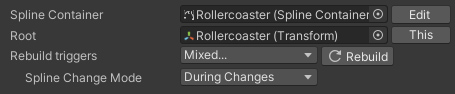
Input/output
Spline Container: This specifies for which splines the meshes are created.
Root: The object where the generated spline meshes get placed. If left empty, they are created in the scene root (not recommended)
Rebuild Triggers
This dropdown provides control over when the spline mesh is to be regenerated.
| Option | Description |
|---|---|
| Via scripting | Rebuilding only occurs when calling the Rebuild() function on the instance from a script |
| On Spline Change | Whenever a Spline within the container is altered in any way |
| On Spline Added | When a Spline is added to the container |
| On Spline Removed | When a Spline is removed from the container |
| On Start() | Rebuilds the spline mesh on the components Start() function. This will be required when prefabbing the component, since this will result in all the mesh geometry being lost. Meaning it’s required to regenerate it when the prefab loads at runtime |
| On UI Change | When any parameter is changed in the inspector |
| On Transform Change | When either the component, root or spline container’s position/rotation/scale is altered |
| On Mesh File Change | If the input mesh’s source file is altered, the mesh is also rebuild. Use this when making external adjustments to the source mesh and have changes reflected when switching back to the editor |
If you have the OnSplineAdded, OnSplineChanged or OnSplineRemoved rebuild triggers disabled, you’d need to manage the spline cache manually through script. A notification will be displayed in the inspector to also indicate this.
Spline Change Mode
This option determines when the On Spline Change rebuild trigger is fired.
| Option | Description |
|---|---|
| During Changes | Fires whenever changes are made to any of the splines |
| After Changes | Debouncing behaviour, will ignore rapid changes made to the spline within 100ms. Triggers a change after this delay.
Use this option when the Spline has many meshers associated with it and editor performance is paramount. |
Output
Readable checkbox
This option can be important to some users, as having it disabled will result in an (fully written) error in these cases:
- An external script wants to read out the generated mesh’s vertices/triangles (eg. Mesh Combine Studio)
- The generated mesh(es) need to be accessible in a build.
Note: Collider meshes are always kept readable, since the Mesh Collider component requires this.
Lightmapping
Lightmapping requires meshes to have lightmap UVs (stored in the 2nd UV channel). These can be auto-generated using the same method being the “Generate Lightmap UV” checkbox on model assets.
- Mark the output
Roottransform as “Static” if you need lightmap UV’s generated for the generated meshes.
After light baking has finished changes made to the mesh will invalidate the lightmap UV again, similar to making changes to a regular mesh. So it’s best to not touch any spline(meshes) after baking.
Lod Count
Set to 0 by default, you can otherwise specify a maximum LOD count to be generated for each spline mesh segment using MeshLOD (available in Unity 6.2+). This occurs when the spline mesh was altered and the scene is saved.
Events
Rebuild with
This is a list of Spline Meshers you can use to rebuild with.
For example, if a Spline Mesher uses the Conforming feature and needs to conform to another spline mesh. You’d want changes to be reflected as you make them.
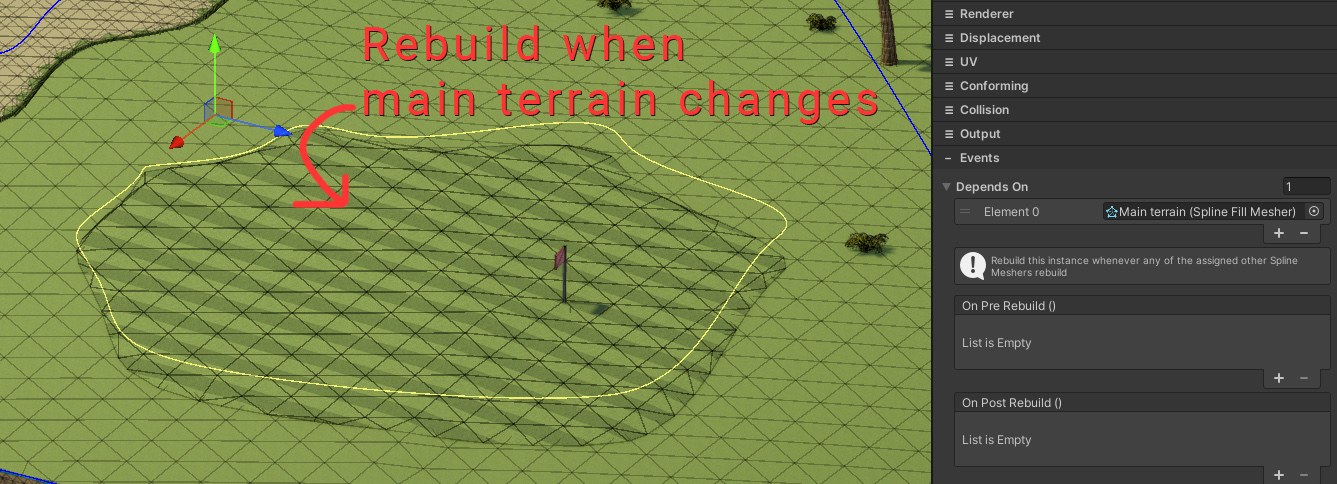
Drag & drop logic
It’s possible to call functions from other components, either before the mesh is being rebuild and/or after. This is achieved using standard Unity events.
For example, you may want to update other aspects of your workflow once a mesh is finished rebuilding:
- If a fence makes up an enclosure for animals, you may want to update a navmesh after it has been changed.
- If segments need to be breakable, a script can ensure they are set up for it (eg. adding custom components).
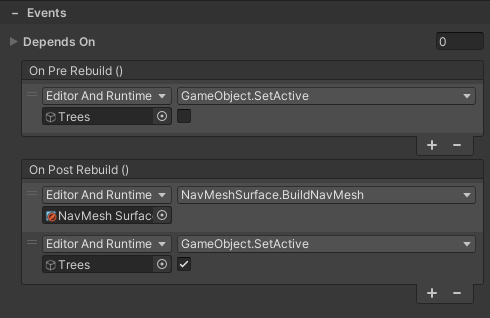
See the Scripting section for details about script-based events.
The collision/trigger events are a front end for any standard collision or trigger events fired from the created mesh segments.
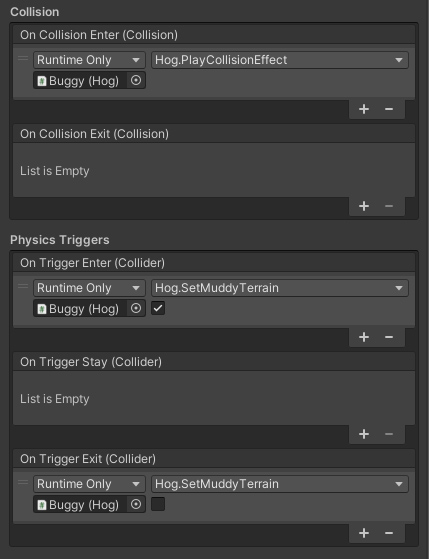
A C# variant to subscribe to, that also passes on the incoming collider is also available. See the Scripting section for more information.
Good to know
- Static flags (eg. occlusion culling) set on the
Roottransform are propagated onto the mesh objects.
 Was this helpful?