
Spline Mesher 2.0 Documentation

Preview

Asset is in development, documentation is a draft

Spline Mesher 2
Version: 2.0.0
Review

3.Spline Curve Mesher #

This component takes an input Mesh and repeats and bends it along the splines in the assigned Spline Container.

All the parameters have tooltips to explain their function. Which is why they aren’t covered here.

Mouse over to view them (outside Play mode)

Mark the output Root transform as “Static” if you need lightmap UV’s generated for it.

Spline Container: This specifies for which splines the mesh are created.

Root: The object where the generated spline meshes get placed. If left empty, they are created in the scene root (not recommended)

Rebuild Triggers

This dropdown provides control over when the spline mesh is to be regenerated.

Option Description
Via scripting Rebuilding only occurs when calling the Rebuild() function on the instance from a script
On Spline Change Whenever a Spline within the container is altered in any way
On Spline Added When a Spline is added to the container
On Spline Removed When a Spline is removed from the container
On Start() Rebuilds the spline mesh on the components Start() function. This will be required when prefabbing the component, since this will result in all the mesh geometry being lost. Meaning it’s required to regenerate it when the prefab loads at runtime
On UI Change When any parameter is changed in the inspector
On Transform Change When either the component, root or spline container’s position/rotation/scale is altered
On Mesh File Change If the input mesh’s source file is altered, the mesh is also rebuild. Use this when making external adjustments to the source mesh and have changes reflected when switching back to the editor

Distribution

The assigned input mesh is measured along the z-axis/blue arrow to calculate its length. This determines how many segments can be distributed along a spline. Alternatively, if the Auto button is disabled a specific amount of segments can be used.

For example, a 3m long pipe, results in 10 segments when distributed along a 30m long spline curve.

However, there will be many cases where an uneven number of segments end up being calculated.

The Scale To Fit and Even Only options determine what happens in those cases.


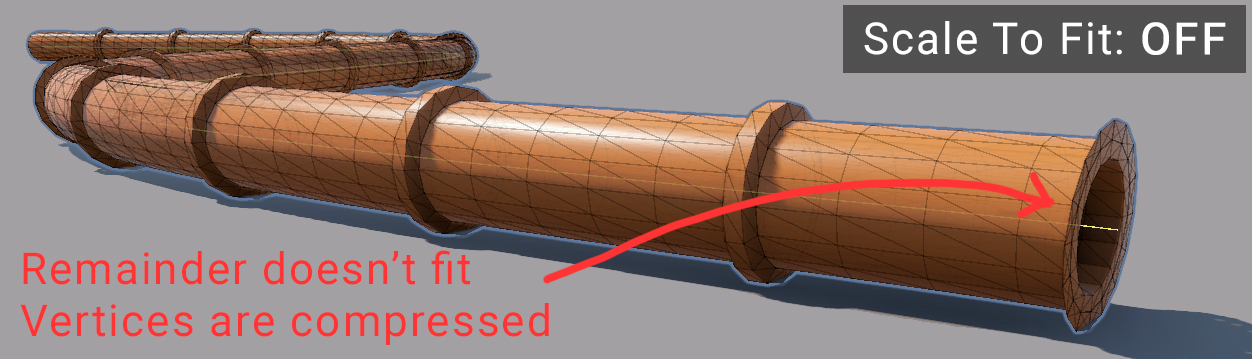
Take this 50m long spline, with a 3m long pipe mesh. It results in 16.6 segments. The last segment gets compressed and cut off, which isn’t desirable. If it is critical that the input mesh doesn’t get scaled, then this is a compromise to accept.
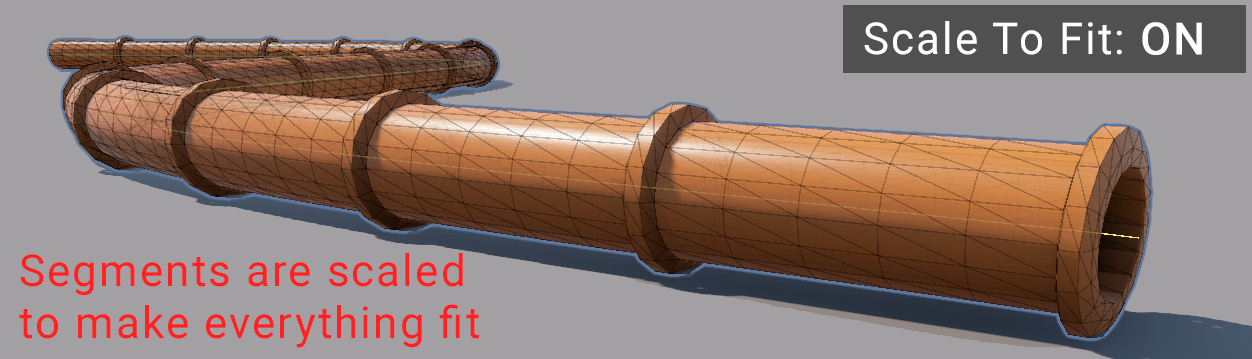
Enabling Stretch To Fit will scale all the segments down enough so that 16 full segments fit on the spline.
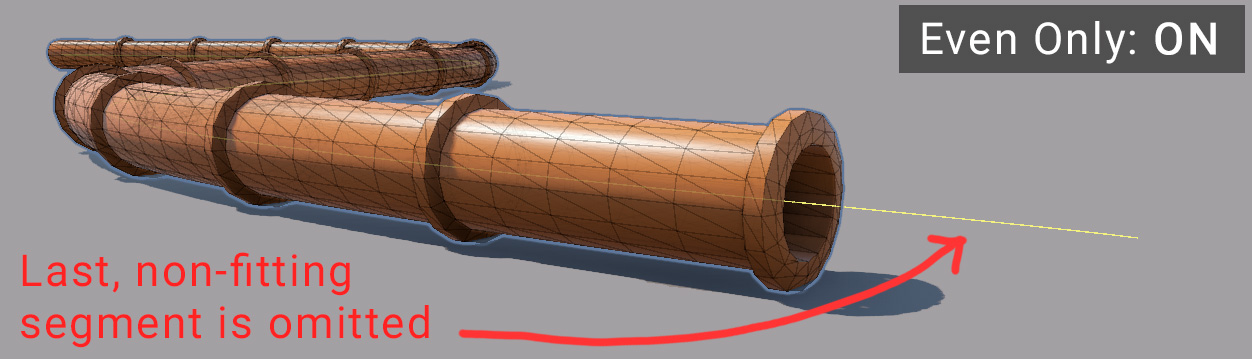
Alternatively, enabling Even Only will simply omit the last (not fitting) segment entirely.
Collision

Here you can enable the generation of a collider meshes.

Using a custom collider mesh is almost always the best:

  • A fence may benefit from a rounded top, so that players can’t stand on them and slide off.
  • A sidewalk may need sloped sides, so characters can smoothly walk up them.

If need collider interaction with RigidBodies, enable the Is Kinematic option.

Events

It’s possible to call functions from other scripts, either before the mesh is being rebuild and/or after.

For example, you may want to update other aspects of your workflow once a mesh is finished rebuilding. For example, if a fence makes up an enclosure for animals, you may want to update a navmesh after it has been changed.

See the Scripting section for more details.

Yes No Suggest edit
Last updated on December 2, 2025
0 of 0 users found this section helpful
If you're familiar with this asset, please consider leaving a review!
Your support is what makes complementary updates possible!
Suggest Edit