
Pending release
Documentation is a work in progress draft!

5.Rendering Layers

This asset ships with support for URP’s Rendering Layer mask functionality. Through no easy feat has this been natively incorperated, which means it works in builds and won’t require double-rendering objects.
This functionality is not available in Unity’s 2D Renderer.
Limiting effects to specific objects
Firstly, set up an effect of choice as outlined in Setup.
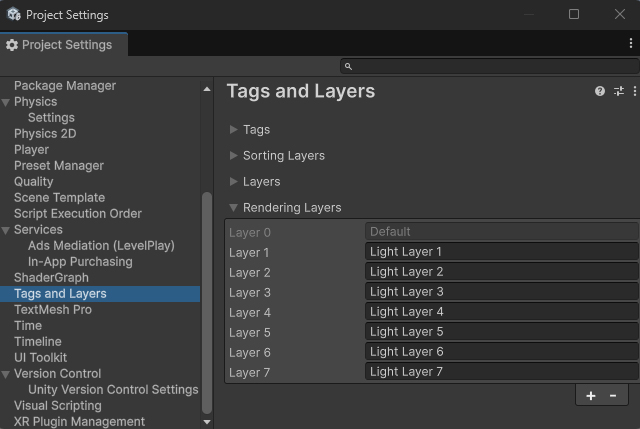
Secondly, take the opportunity to review the Rendering Layers configured in your project, you may want to change Light Layer 1 to something more descriptive
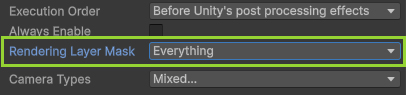
On either the effect’s Render Feature or Post Processing Volume component you’ll find that the Rendering Layer Mask is set to “Everything” by default.
You can set this to one or more target layers. For this example Light Layer 1 is chosen.
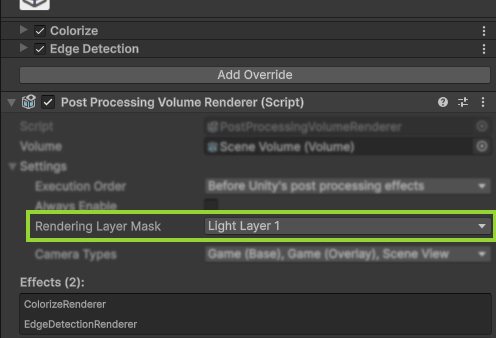
This option is on an effect’s Render Feature if you’re not using this component
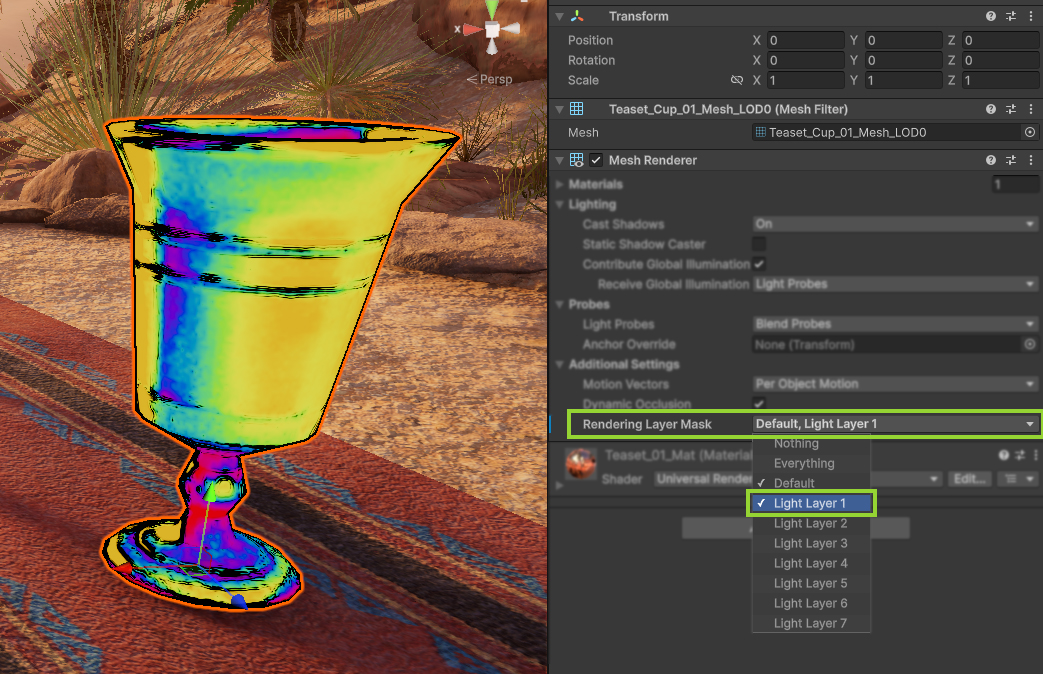
Finally, configure any Mesh Renderer to render to that layer (note: Only Opaque materials support this)
Using objects as portals
When using a Rendering Layer Mask to restrict an effect to specific layer, the objects on those layers will still render as usual. But effects get laid over them.
This means you can’t see through the object and use it as a sort of “portal”.
This is where the Post Effect Mask component comes in! This component uses a specialized shader that renders the object invisible BUT still write to the Rendering Layer Mask.
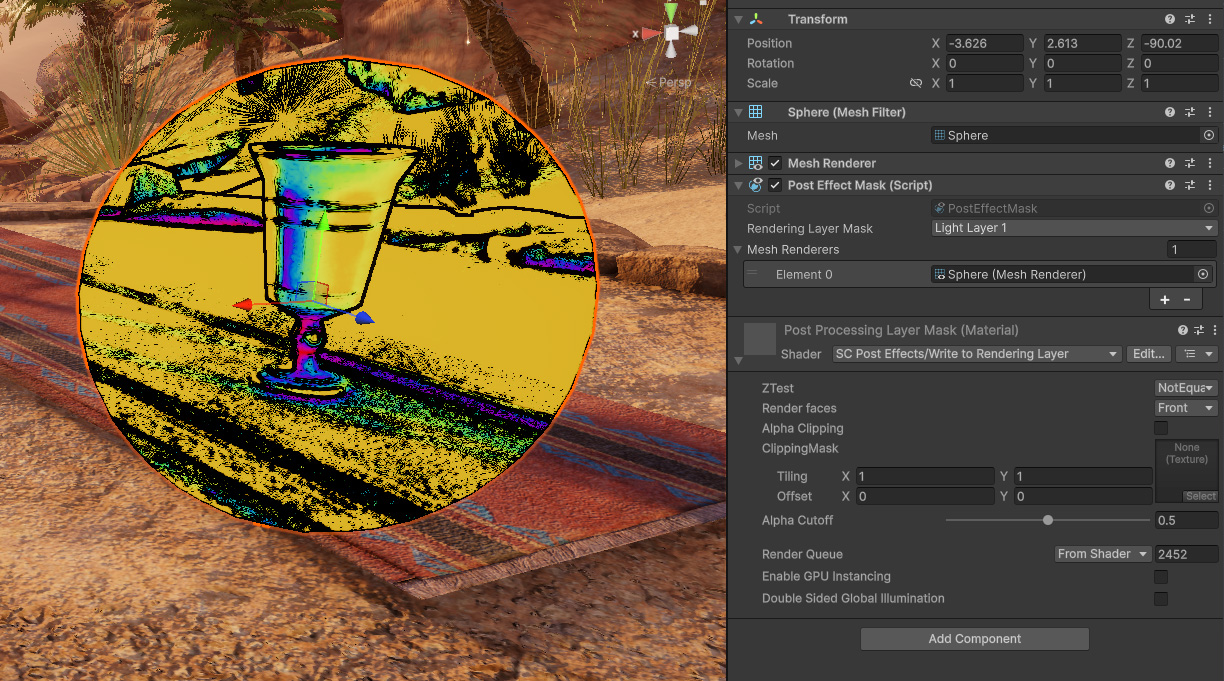
The result is that this object acts as a portal/mask.
 Was this helpful?