
Pending release
Documentation is a work in progress draft!

8.1.Fog

Adds distance and height-based fog to the scene. Features several color modes:
Uniform color
Fog will be a single color
Gradient
Samples a horizontal gradient texture from left (near) to right (far). Will expose a distance parameter to control the length of the gradient.
Skybox color
Fog will take on the color of the skybox, making it seamlessly blend in.

Transparent materials
The effect relies on the depth texture Unity renders, which provides a means to measure the distance from the camera to an object’s pixel on screen. Based on this distance, a certain amount of fog is applied.
As such, shaders that don’t support depth writing will not be affected by fog. This usually means:
- Transparent materials (water/particles/etc).
- Sprites.
- UI elements
- Custom shaders without a DepthOnly pass.
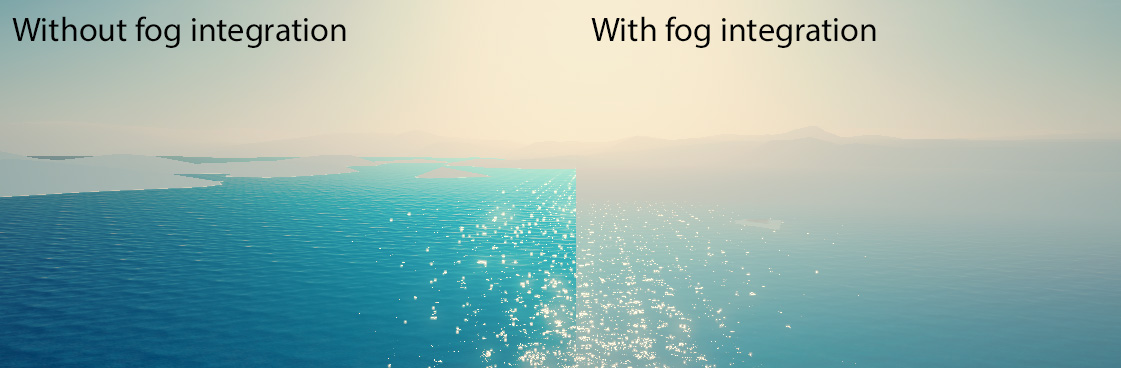
On these materials, no amount of fog gets applied, which makes them stand out unwantingly.
Solution
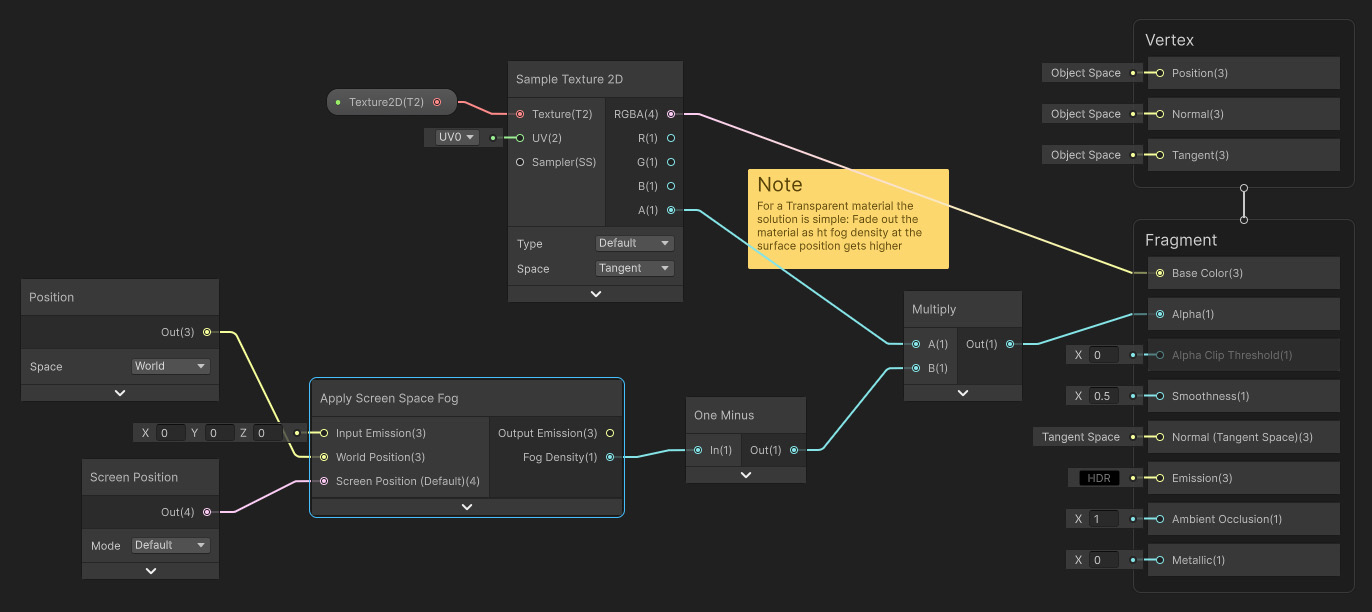
The only way around this is to incorporate the fog shading into custom a shader for the above purposes, and using that instead. Instead of using the external Depth texture, fog can be applied based on the surface’s distance to the camera instead. This is exactly how Unity’s standard fog works, which applies fog directly to an object, rather than through post-processing effect. This is also far more efficient!
- For hand-written shaders, you can include the Packages\SC Post Effects\Runtime\Fog\Fog.hlsl shader library and use the
ApplyTransparentFogfunction. You can find an example shader here. - In Shader Graph you can use the
Apply Screen Space Fogsub-graph. In the Packages\SC Post Effects\Runtime\Fog\ShaderGraph folder, you’ll find an shader that illustrates how this can be achieved.
(An alternative is to modify Unity’s/URP’s shader libraries, and replace the function that applies fog. This won’t be covered in further detail. Experienced graphics programmers can reference the Packages\SC Post Effects\Runtime\Fog\Fog.hlsl file)
 Was this helpful?